🚀 Overview
Claude Code Proxy is designed specifically for Mac users who want to:
- ●
✨ Use Claude Code with any AI models you prefer
- ●
🛡️ Maintain data privacy with local deployment
- ●
💰 Control costs by choosing your own model providers
- ●
📋 How It Works
Step 1: Configure Model
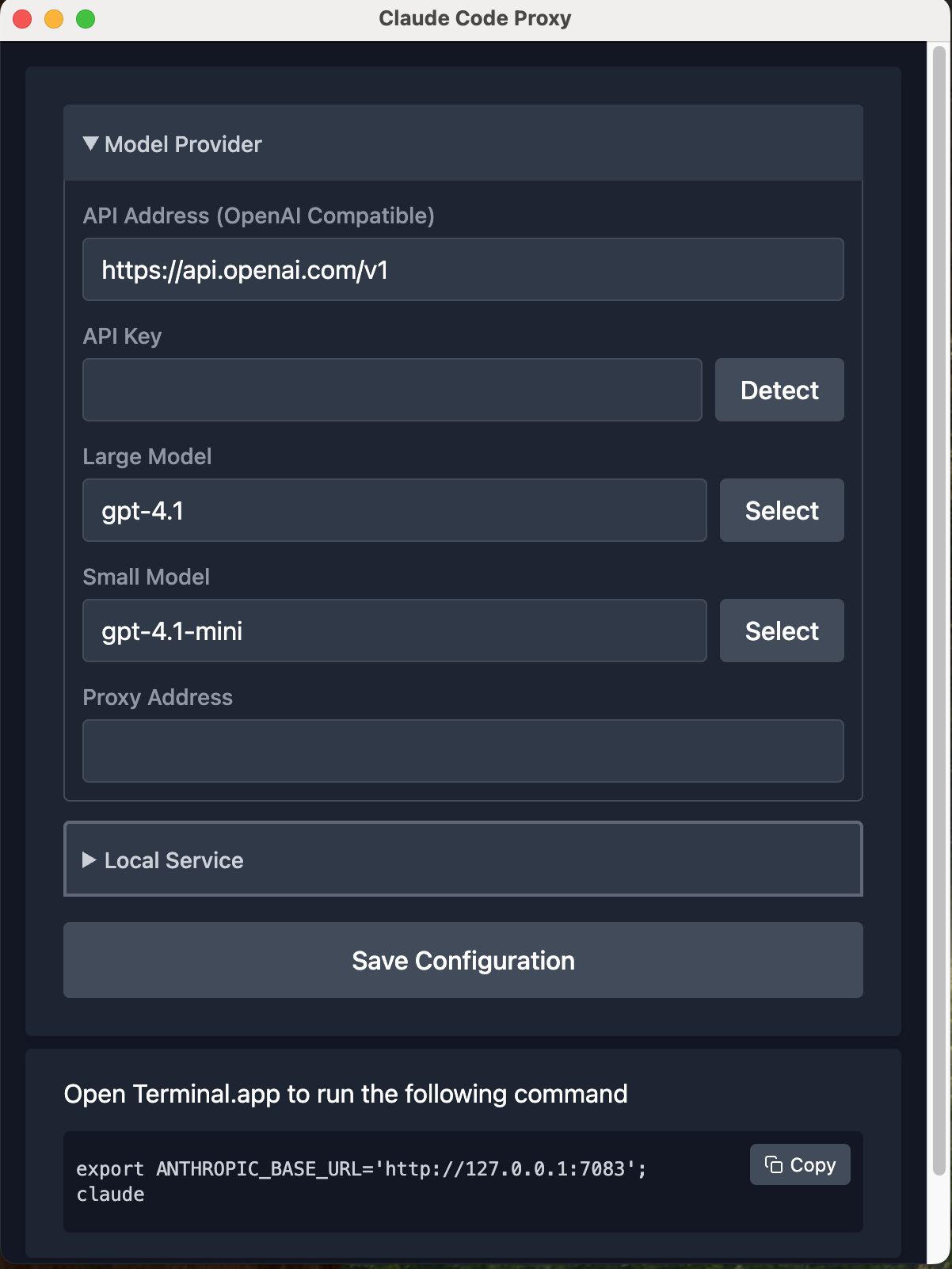
🔑 Configure API Key
Configure your API key and customize the base URL if you don't want to use OpenAI models.
Example: Use OpenRouter
https://openrouter.ai/api/v1
💡 Pro Tip: You can use Ollama or LM Studio if they're OpenAI compatible!
Step 2: Select Your Models
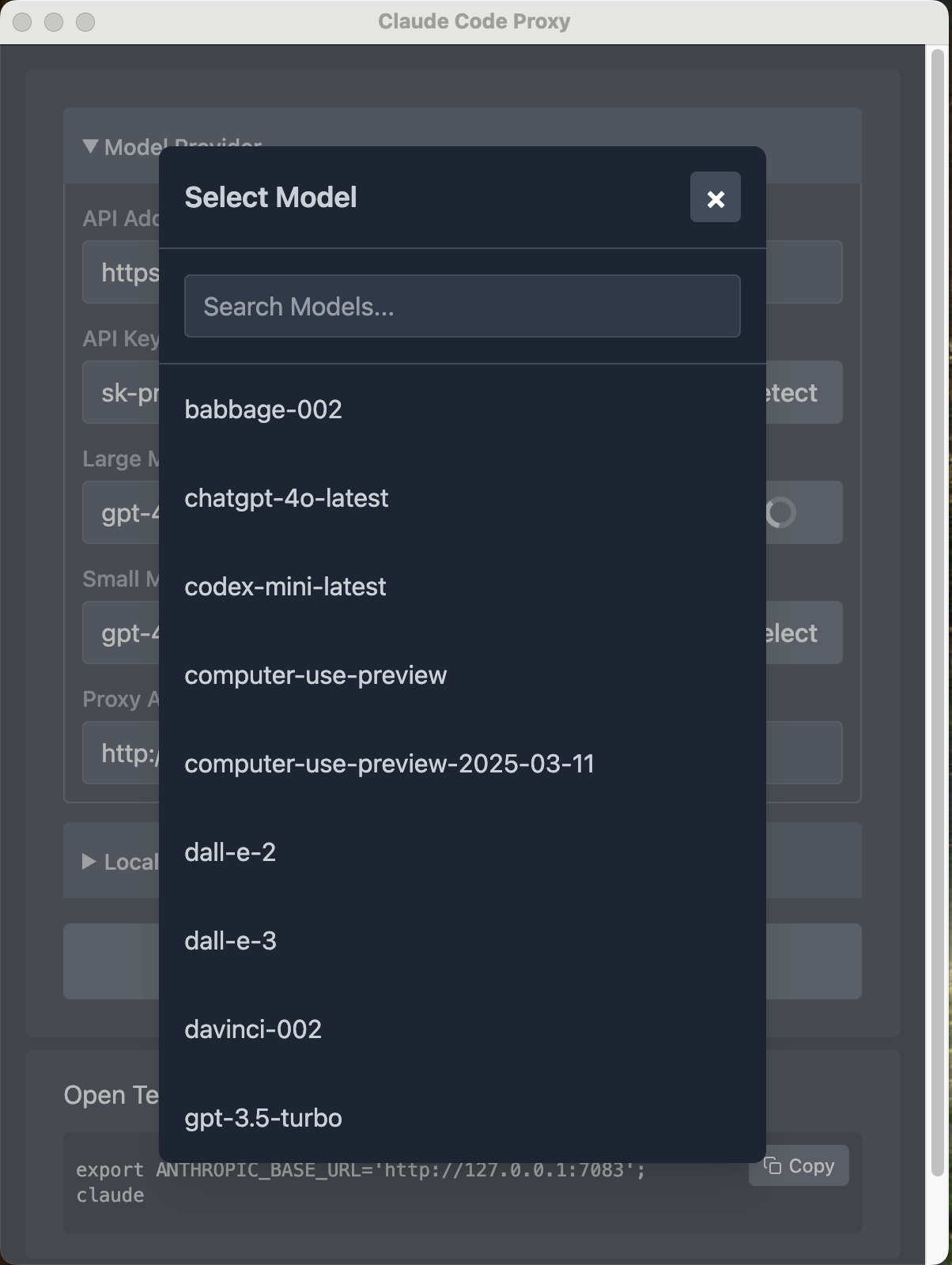
Choose the models you want to use. If the provider doesn't provide a model list, you can enter them manually.
Step 3: Test Connection
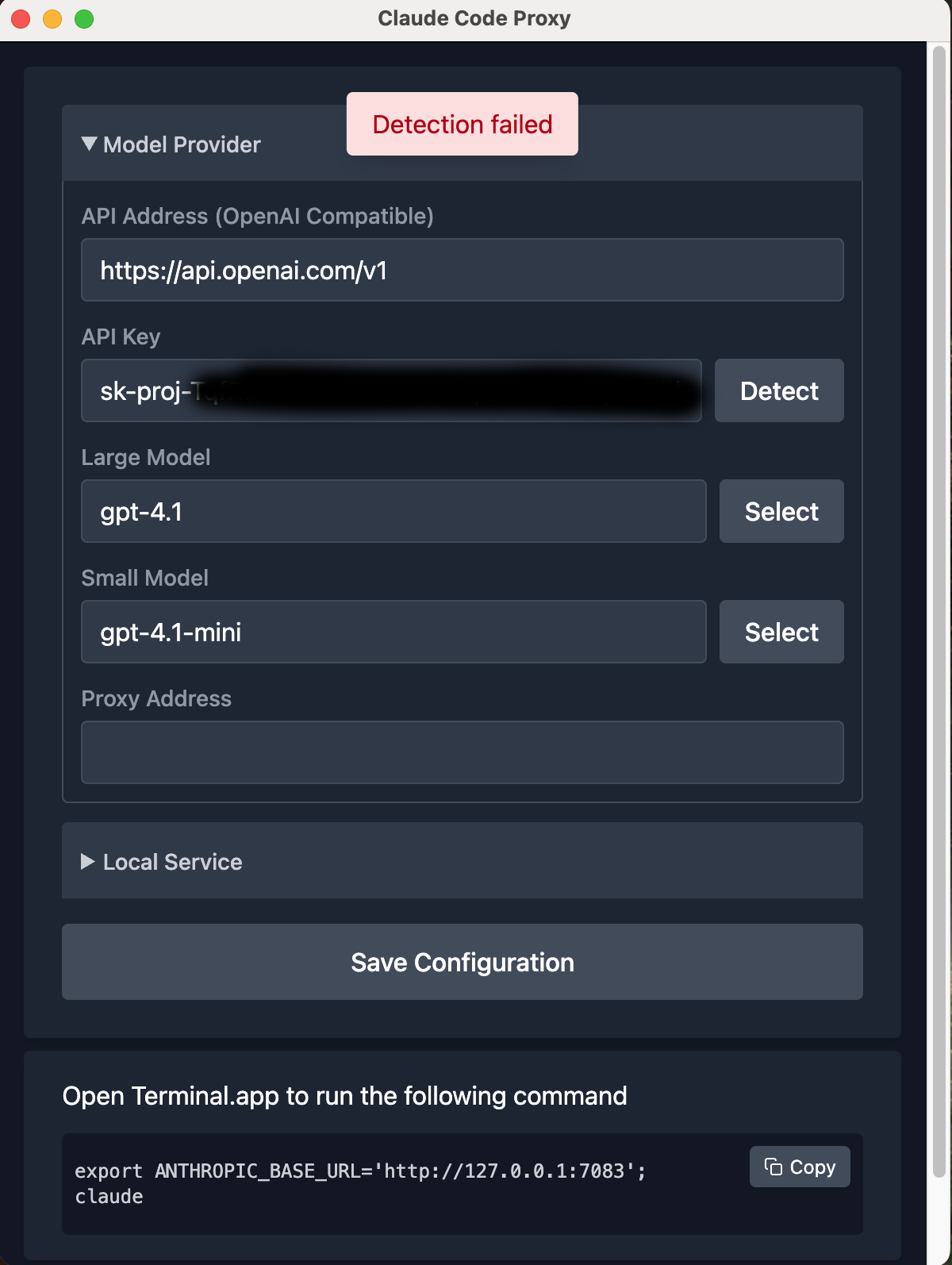
Use the 🔍 Detect button to test model communication:
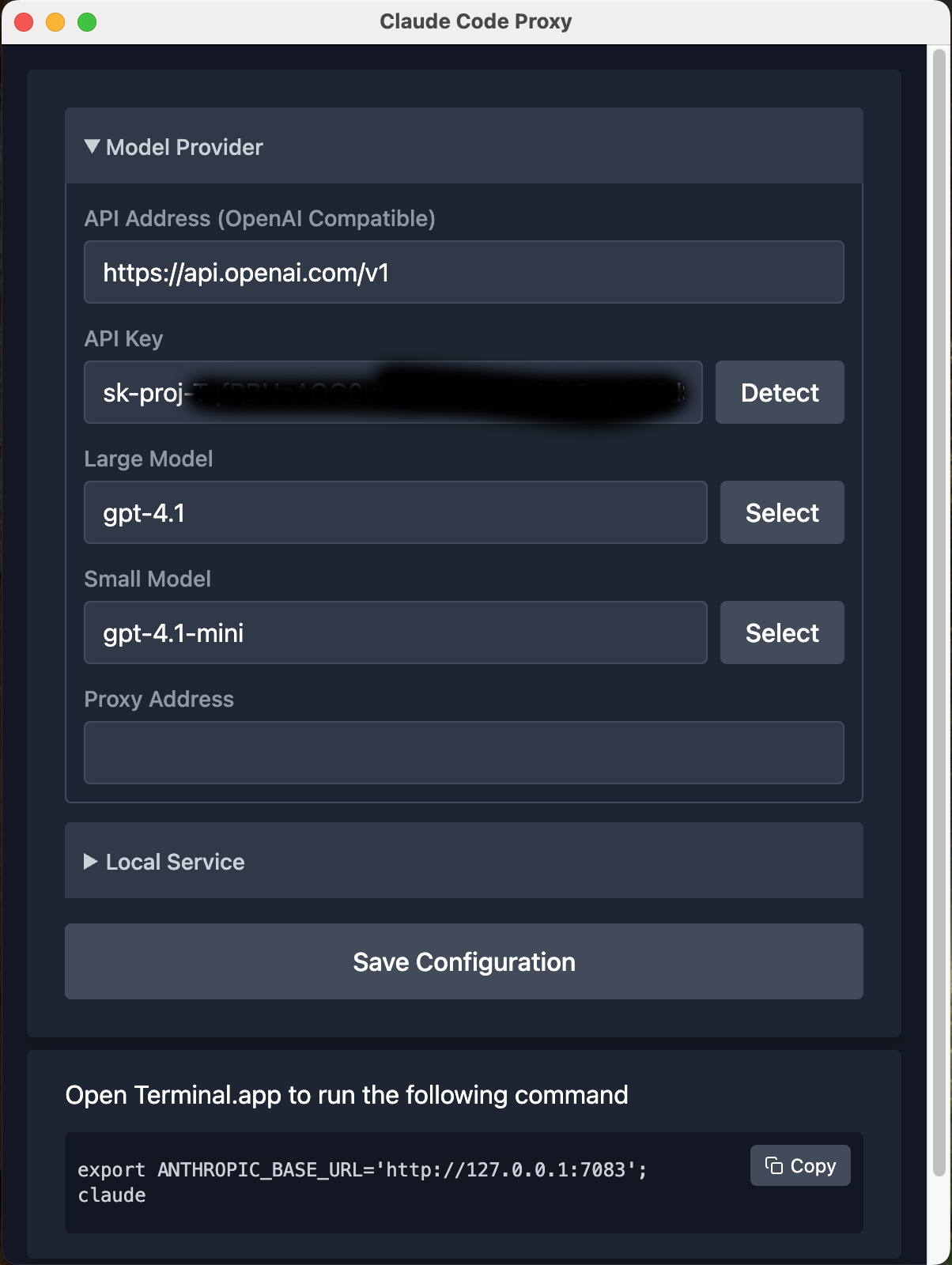
Common Issues & Solutions:
❌ Incorrect Base URL or API Key
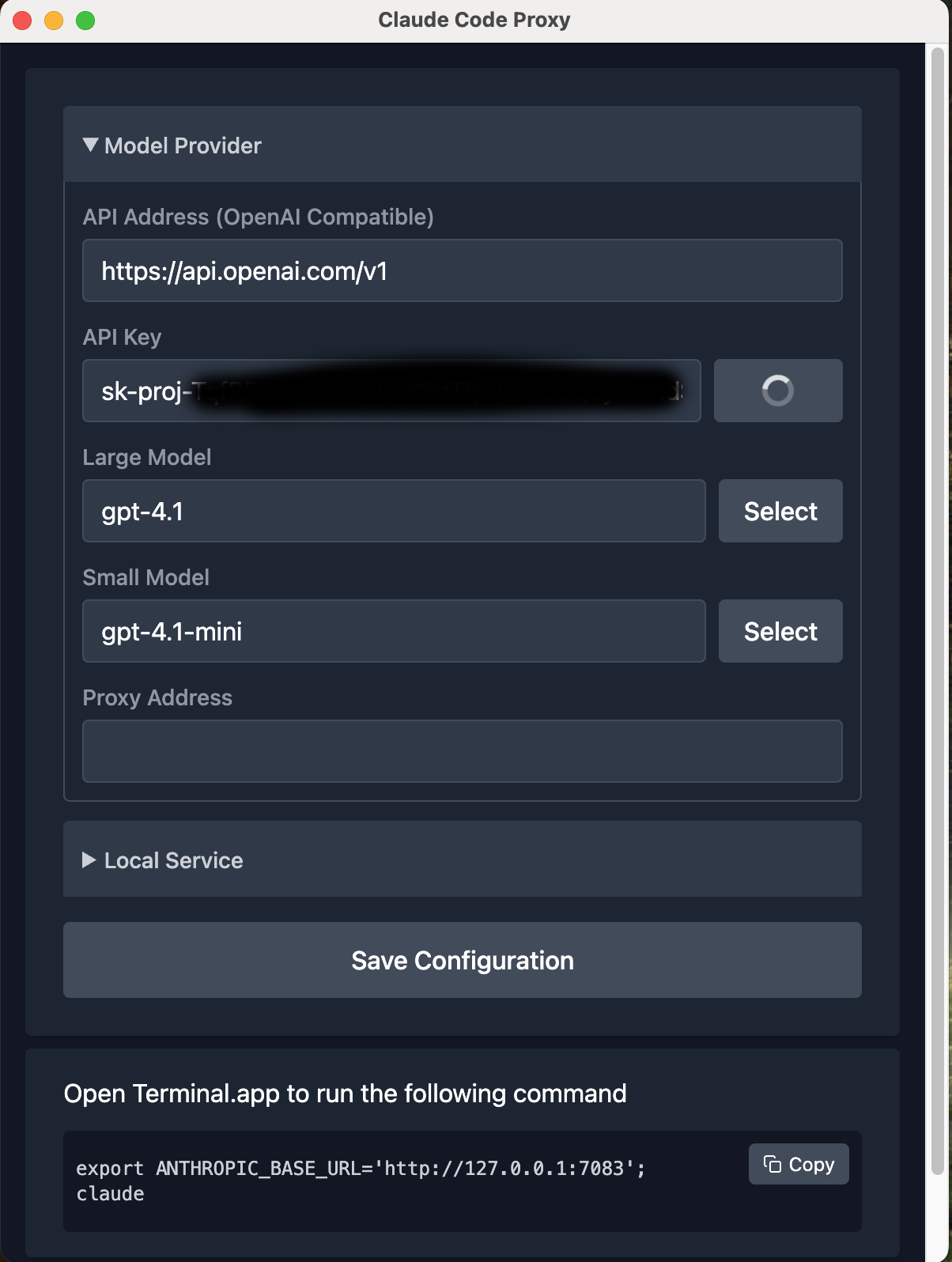
❌ Network Issues
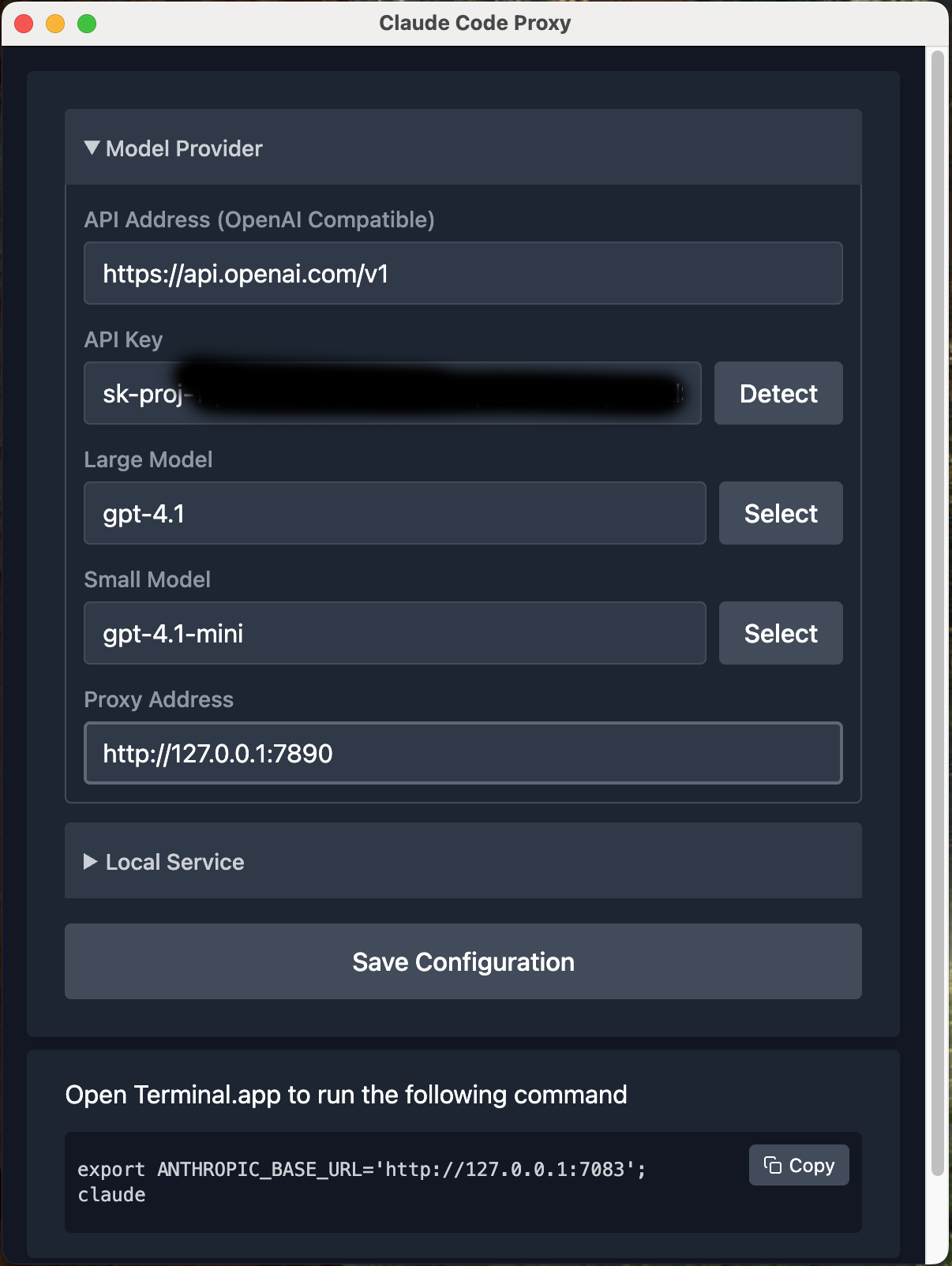
Step 4: Configure Proxy (Optional)
If you encounter network issues, configure a proxy:
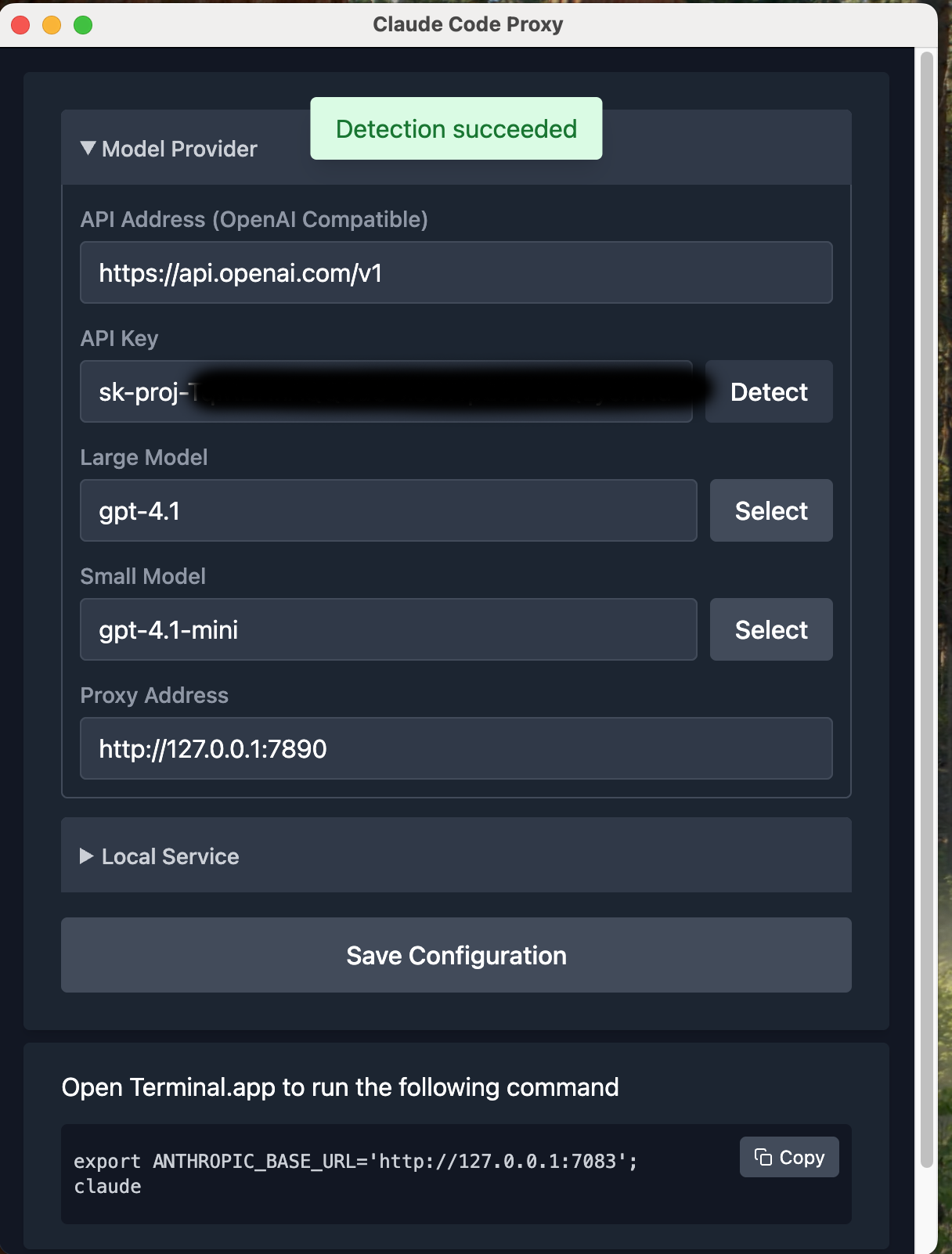
✅ Success! Test again and it works:
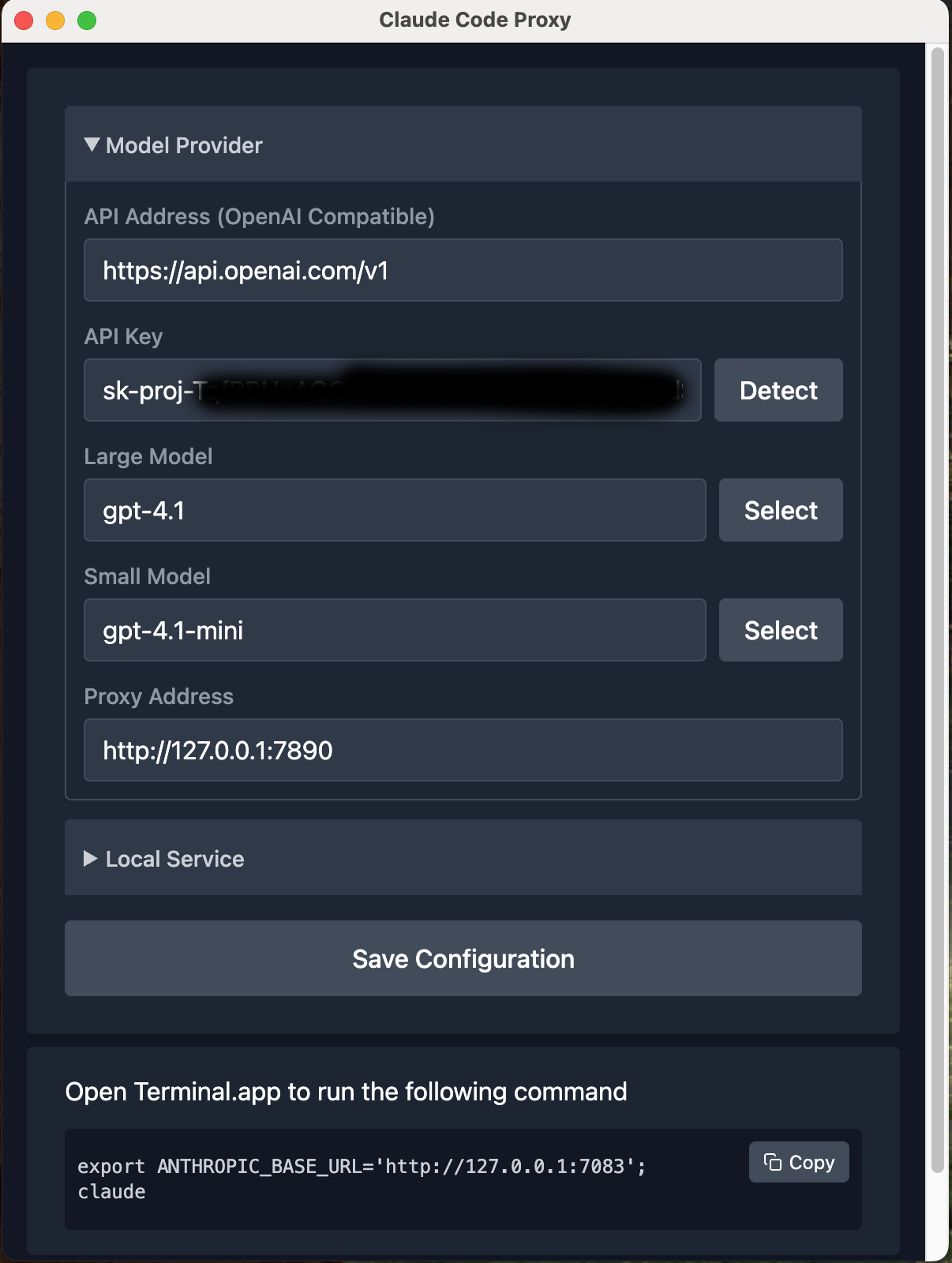
🎯 Final Configuration
Your complete model configuration should look like this:
🚀 Launch Claude Code
- ●Click 💾 Save Configuration
- ●Copy the command shown below
- ●Paste it into your Mac Terminal.app
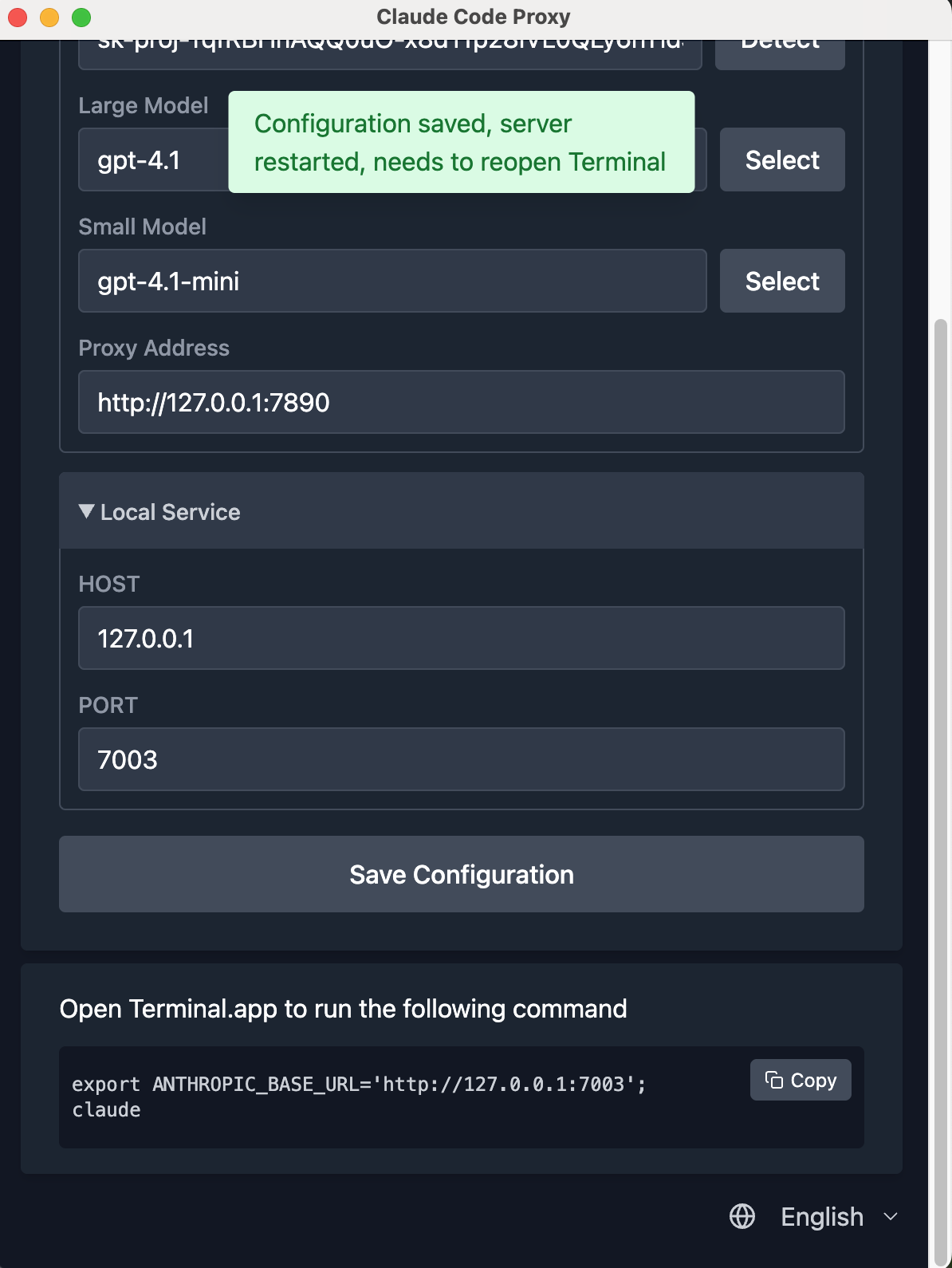
🎉 You're all set! Now you can use Claude Code with your configured models.
📚 Additional Resources
🔧 Need Claude Code?
One-click installation script →
🤖 Want More Features?
Claude Code collections and guides →
Enjoy coding with AI! 🚀